
Install certifi
If you’re encountering, SSLCertVerificationError: [SSL: CERTIFICATE_VERIFY_FAILED] certificate verify failed: unable to get local issuer certificate, is common on macOS when Python is unable to verify SSL certificates due to a missing or inaccessible certificate store. This usually affects the ability to fetch data over HTTPS, such as when attempting to download or use resources like ngrok.
To resolve this issue on macOS, you need to install the certificates for Python. Follow these steps:
These examples use Python 3.12, the minimum version supported by the current Tradeboard build.
1. Locate the Correct Path of Python Installation:
To find the Python 3.12 executable, open Terminal and run:
which python3.12Locate and Run the Install Certificates Script:
Once you have the correct Python 3.12 path, locate the Install Certificates.command helper if your installer supplied it. Homebrew installations commonly use the system certificate store and certifi instead.
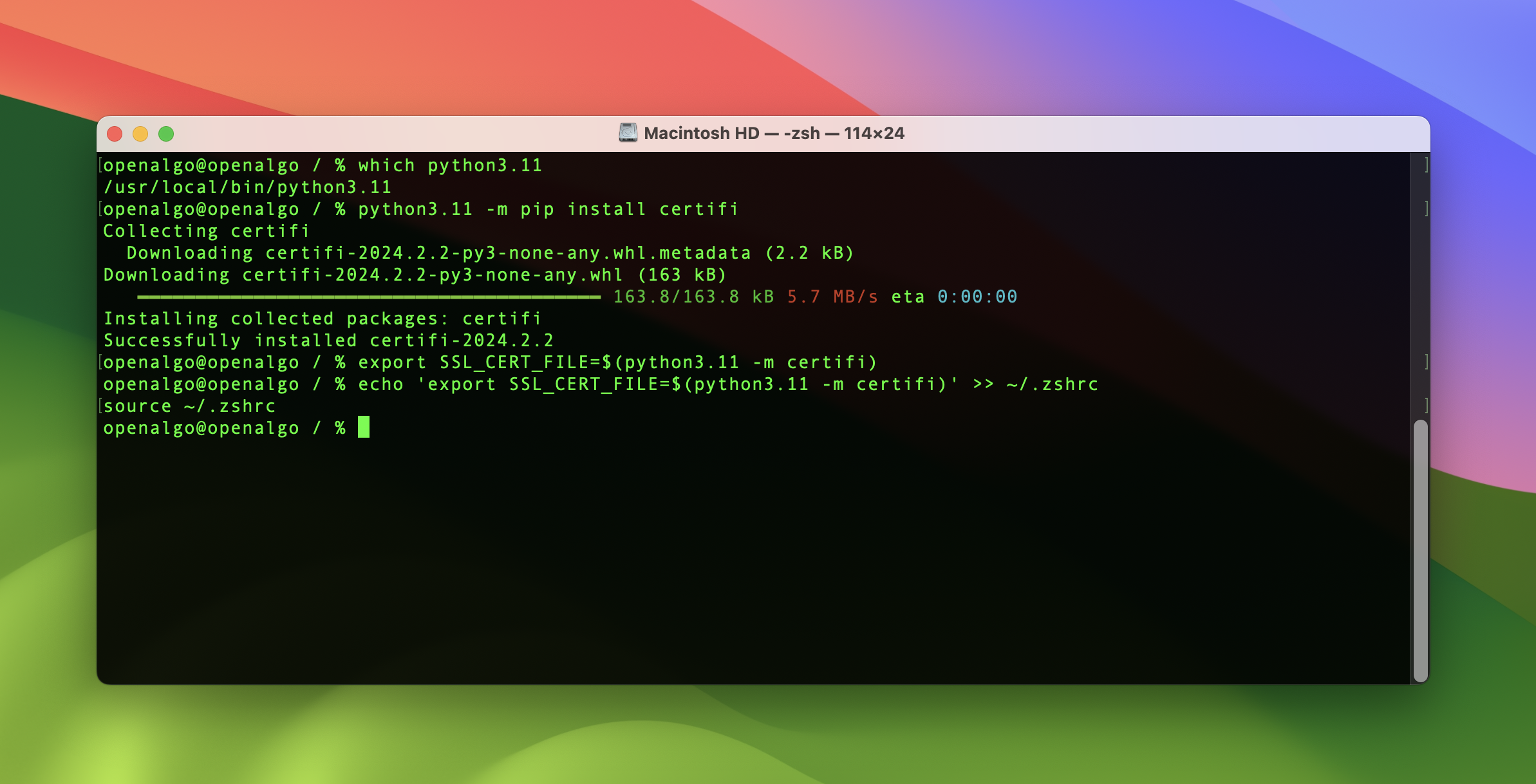
Assuming you installed Python using Homebrew, you might not find an Install Certificates.command. Instead, you can ensure the certificates are installed by manually installing the certifi package and configuring your environment to use it. Here’s how you can do that:
- Install certifi:
python3.12 -m pip install certifi- Set the SSL_CERT_FILE Environment Variable:
To manually specify the certificate file for Python to use, you can set the SSL_CERT_FILE environment variable to point to the certifi certificate file:
export SSL_CERT_FILE=$(python3.12 -m certifi)- Retry Running Your Python Code:
After setting up the certificates through certifi, try running your Python code again. This should resolve any SSL certificate issues.
If a python.org installation includes Install Certificates.command, it is typically under /Applications/Python 3.12/. Run the helper for the same interpreter used by Tradeboard.
Ensure that you are using the correct paths and commands based on how and where Python is installed on your system.