
AmiQuotes
This tool helps you to fetch data (1 minute / Daily) directly from the broker and seamlessly update Amibroker using the AmiQuote tool every minute.
AmiQuote is a polling downloader, not a streaming feed. The Tradeboard.ads file below is an AmiQuote data-source definition: each time AmiQuote runs it issues one HTTP GET per symbol against the Tradeboard Ticker API and imports the plain-text result into the AmiBroker database.
GET http://127.0.0.1:5000/api/v1/ticker/{symbol}?apikey={api_key}&interval={interval}&from={from}&to={to}&format=txtTwo consequences worth knowing before you start:
- The data source declares only two usable intervals: Daily (
interval=D, up to 3650 days per request) and 1-minute (interval=1m, 1 day per request). The other periodicities listed by AmiQuote carry no Tradeboard interval token and will not download. - The Ticker API clamps the requested date range server side: intraday intervals are capped at 30 days back from the end date, and D/W/M at 10 years. Longer requests are silently trimmed rather than rejected.
If you want a live tick feed and realtime charts instead of a once-a-minute snapshot import, use the Tradeboard AmiBroker Plugin, which streams from the Tradeboard WebSocket proxy.
Prerequisites
Tradeboard and Tradeboard API Key
Amibroker 6.0 or higher
Amiquotes 4.10 or higher (mostly preinstalled with Amibroker) if not download from Amibroker Download section
Tradeboard supported Brokers providing Historical Data / Intraday Data API
Note : As of now kotak not supporting intraday/historical data API
Step 1 : Download Tradeboard - Amiquotes (Plugin)
Download the file and save under Amibroker -> Amiquotes -> DataSource Folder
.CPFUCZKa.png)
Step 2 : Create the Amibroker Database
Open Amibroker Goto File Menu -> New -> Database
.DNSSED9q.png)
Create a New Database
Enter the Database Name, Base Time Interval and Click Create
.BtDR4zL_.png)
Enter the Database Source as (local database) and Number of Bars as 75000
.BC5rdvpp.png)
Now click on Intraday Settings and Enable Allow Mixed EOD/Interval data and press ok
.C9fdghE0.png)
Step 3 : Add Tradeboard Ticker Symbols
Add Ticker Symbols from the Symbols menu -> New
The AmiBroker ticker name is pasted straight into the Ticker API path, so it must be written as EXCHANGE:SYMBOL, for example NSE:RELIANCE, BSE:TCS, MCX:CRUDEOIL18JUN26FUT, NSE_INDEX:NIFTY. This is the reverse of the SYMBOL-EXCHANGE format used by the Tradeboard AmiBroker data plugin. A ticker with no EXCHANGE: prefix does not fail cleanly: the Ticker API falls back to NSE:RELIANCE and you will silently import the wrong instrument.
.Gss3fc9T.png)
You can Also add the ticker symbol with comma separated
.BsUNPbyp.png)
If you want to import bulk symbols consider using Watchlist import method (Supports .txt or .csv or .tls format)
.DqbOWysv.png)
Step 4 : Amiquote Realtime Update
Open Amiquote from Tools Menu -> Auto-update quotes (AmiQuote)
.C-vX0hwb.png)
From the dropdown of Amiquote Select Tradeboard
.B1vREz26.png)
Alternatively, you can also import the tradeboard template using the import method. Goto Data Source Menu -> Import
.DI2HaXoj.png)
configure the Tradeboard API key
Get the Tradeboard API Key by visiting tradeboard -> Dashboard -> Click on Profile Icon -> APIKey
Create one if you installed tradeboard for the first time. Copy the API key and paste in the User-definable data source -> API Key Section as shown below and press ok
.Bmbt46vg.png)
Now Select the desired interval and set Run every 1min and press the play button
.46cJye-g.png)
Now the Data Download from the Broker via Tradeboard Starts
.CuBDVY81.png)
Now you can see that tradeboard is Auto updating the Amibroker Database every 1 minute
.YG_8Slk2.png)
Make sure that Charts are loaded properly.
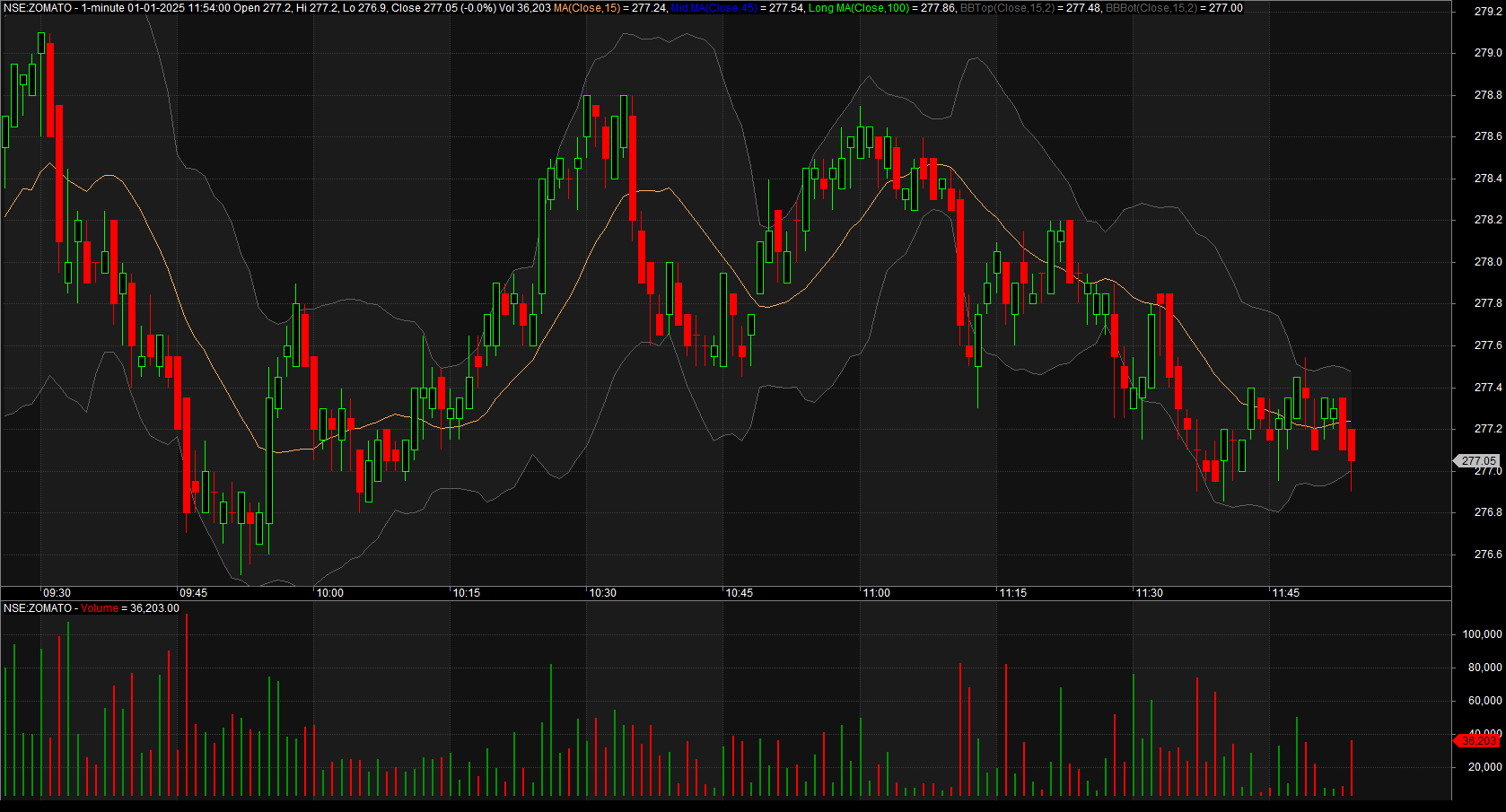
Start using your brokers data for your analysis purpose.
For more details and troubleshooting refer the Ticker API
Make sure to login to tradeboard every day to fetch the live intraday/EOD quotes